/teamkeepr_logo.png?width=191&height=45&name=teamkeepr_logo.png)
How to Manage Employee Profiles
This guide covers the full lifecycle of managing employee profiles within the system, including profile creation, updating information, terminating users, and reactivating previously terminated employees.
Creating a New Profile
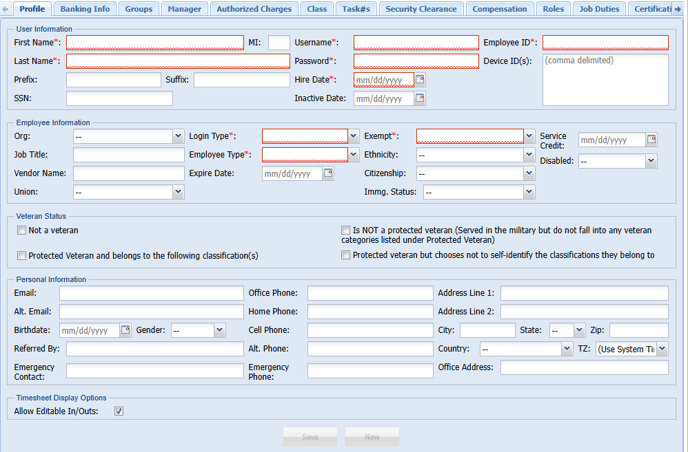
Before a profile can be created or saved, the following 9 required fields must be completed (Each field is highlighted in read on the page to indicate it is required to be able to save and create the profile as seen in the above screenshot):
- - First Name
- - Last Name
- - Username
- - Password
- - Hire Date
- - Employee ID
- - Login Type
- - Employee Type
- - Exempt Status
Once all required fields are filled, click “Save” at the bottom of the page to create the profile.
Notes:
- Device ID is required if the employee will be using WebClock or physical time clocks.
- Email address is required if the employee needs to receive email notifications.
- Be cautious when editing fields such as Employee ID or First/Last Name—these may be linked to accounting or payroll exports, and changes could result in data errors.
Updating an Existing Profile
- - Go to the Employee Management section.
- - Use the filter bar to search for the employee's name, or expand the appropriate group folder to find them manually.
- - Click on the employee's name to open their profile.
- - Make any necessary changes.
- - Click “Save” at the bottom of the page.
Terminating a User’s Access
- - Navigate to Employee Management.
- - Locate the employee using the group folders or the search box (also available at the top right of any page).
- - Click on their name to open the profile.
- - Under the Hire Date field, enter a date in the Inactive Date field.
- - Click “Save”.
Once saved, the user will no longer be able to log in, but administrators and supervisors will still have access to their historical data for reporting or payroll exports.
Reactivating a Terminated User
- - Go to Employee Management.
- - Uncheck the “Active Only” box.
- - Use the filter bar to search for the inactive employee by name.
Once located:
- - Remove the Inactive Date.
- - Update the Hire Date to a date after the previous inactive date.
Example:
- Original Hire Date: October 1, 2017
- Inactive Date: January 22, 2018
- New Hire Date: February 9, 2018
⚠️ The system will not allow you to enter a new hire date that is the same or earlier than the inactive date.
Optional:
If the employee should receive service recognition based on their original hire date, enter that date in the Service Credit field. This preserves their service time and will ensure leave accruals use the correct date.