An Employee is assigned one or more device IDs by an Administrator through the “Employee Management” feature within TeamKeeper. An Administrator needs to
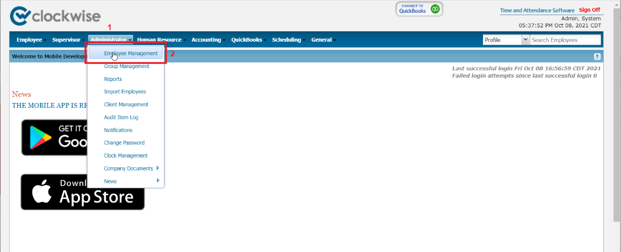
- select the “Administrator” menu;
- select the “Employee Management” option;
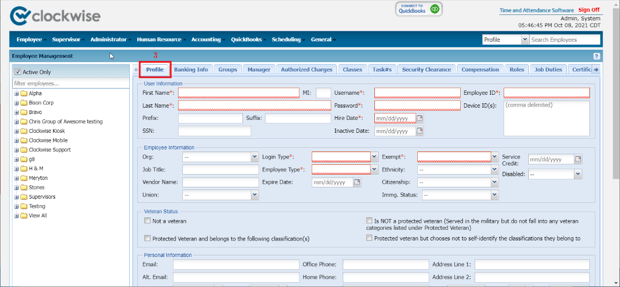
- select the “Profile” tab;
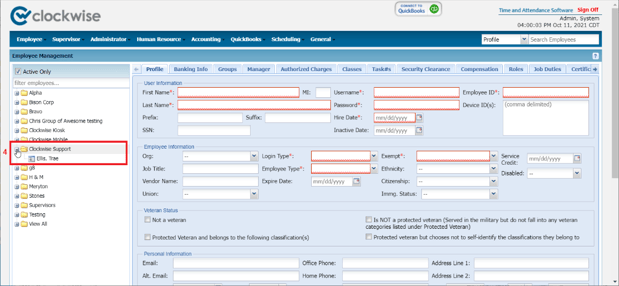
- list Employees by drilling down the group tree on the left side or
- list Employees by entering text in the “filter employees…” field to narrow down the list;
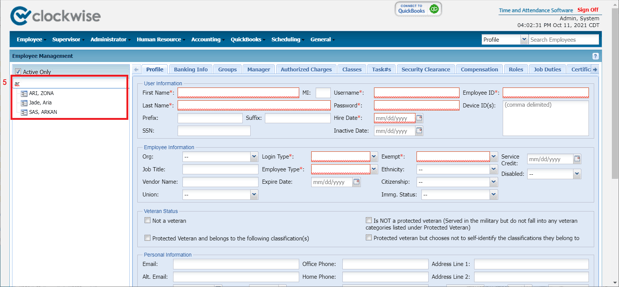
- select an Employee from the list, which will display the Employee’s information on the right side; and
- review the “Device ID(s)” field on the right side.
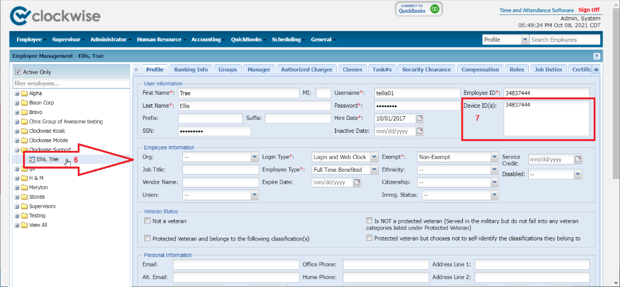
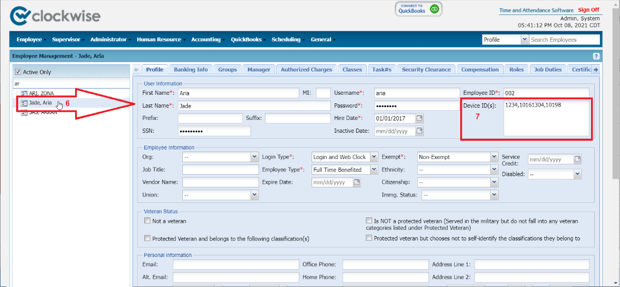
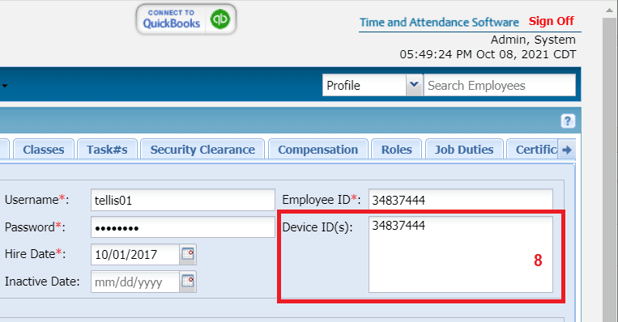
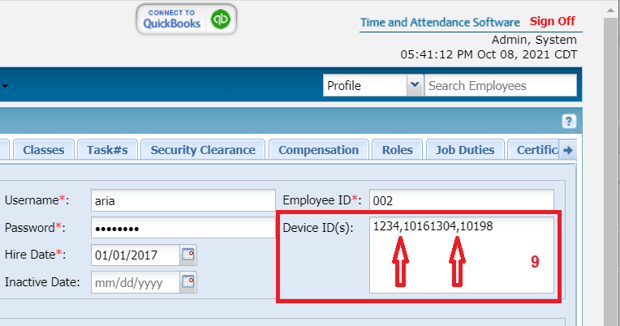
The “Device ID(s)” field allows an Administrator to assign one or more unique IDs.
- If an Employee will only have one unique ID, enter this number (no spaces) in the “Device ID(s)” field.
- If an Employee will have more than one unique ID, enter these numbers in the “Device ID(s)” field separated by commas with no spaces. Do not add a comma after the last ID in the list.
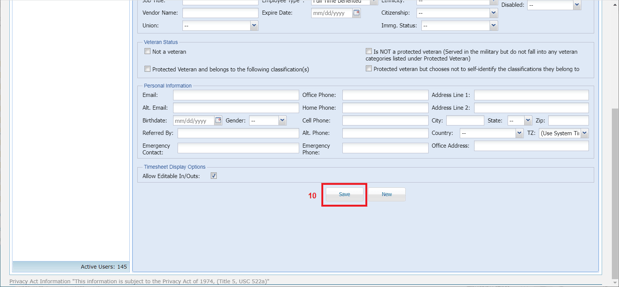
- When the update has been completed, select the “Save” button.
"